eMadrid Glossary
(Latest revision: October 2026)
Active international trademark registration
Asset
Basic mark
Cancellation
Certified documents
Change holder details
Change in ownership
Connection
Correction
Date of registration
Designation
Designation status
eMadrid
Expiration date
Formality examination
Grace period
Holder
International Register
International trademark application
International trademark registration
Irregularity notice
Limitation
Madrid Agreement Concerning the International Registration of Marks
Madrid e-Filing
Madrid Protocol (Protocol Relating to the Madrid Agreement)
Madrid System
Madrid System member
Nice class
Nice Classification
Office of origin
Portfolio
Provisional refusal
Renewal
Renunciation
Representative
Subsequent designation
Trademark
Vienna Classification
Watchlist
WIPO Account
WIPO Gazette
WIPO reference number
WIPO Wallet
A financial account, managed in Swiss francs, that simplifies the payment process for customers who regularly carry out transactions with WIPO. Find out more about a WIPO Wallet .
Workbench
New eMadrid Environment: FAQ
(Last revision: February 25, 2025)
General questions
eMadrid is a digital environment that provides integrated access to all Madrid System online tools and services.
You need a WIPO Account to use some of the tools and services included in eMadrid.
eMadrid is structured around three key actions, each with its own dedicated section:
- File an Application: Start a new international trademark application.
- Manage Your Trademarks: View, manage and track your existing international trademark applications and registrations (login required).
- Find and Monitor: Search and watch international trademark registrations using the tools available. Each section offers all the specific supporting tools and resources needed to complete that action.
You log in to eMadrid using your WIPO Account userid and password. Don’t have a WIPO Account? Create one now!
Questions about the workbench
The workbench is your personalized workspace where you can access and manage all your international trademark applications and registrations. Access your workbench using your WIPO Account!
You can:
- See the status of protection of your trademarks
- Access a complete history of all your transactions
- Manage or update your international trademark applications and registration
- Share your assets with your connections and manage access rights
- Organize applications and registrations into portfolios, grouped by holder name, product type, class, etc.
- Respond to irregularity letters
- Make payments
- And more.
You must have a WIPO Account to access your workbench.
An asset refers to any international trademark application or registration in your workbench.
There are two types of users (viewer and editor), and two levels of access (admin and none):
- Editor Admin: You can view, edit, share and manage access rights
- Editor only: You can view and edit, but cannot share or manage access rights
- Viewer Admin: You can view, share and manage access rights (up to the level of your own access rights)
- Viewer only: You can view but cannot edit, share or manage access rights
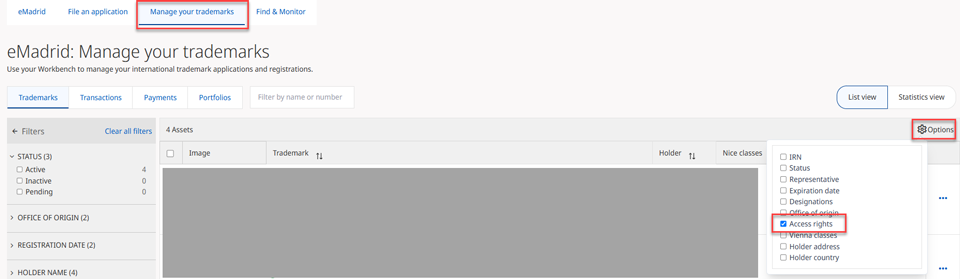
- Login to eMadrid and access your workbench
- Click the “Options” icon at the top-right of your workbench
- Check the “Access rights” checkbox
- Click above the workbench to validate your selection.
Your access rights are now displayed for all assets!
You need to ask someone with “Editor Admin” access to the asset to change your role.
First, make sure you are logged into eMadrid. If your workbench is still empty, then either:
- We don’t have an email address on record for your international trademark registration(s); or
- The email address connected to your WIPO Account doesn’t match the one we have on file.
What should you do?
Update or add your email address using "Change holder details" (if you are the holder) or "Manage representative" (if you are the recorded representative) in your workbench.
Tip! You can update/add an email address for multiple assets at once, as long as the holder name is the same for all of them.
- Go to “Find & Monitor” in eMadrid
- Search for the international trademark registration(s) by name, number, etc.
- Choose the registration(s) that you want to add to your workbench
Warning: You cannot add an international trademark registration that has no email address connected to it.
- Click “Add assets to your workbench”
- Click “Continue”
- Choose the level of access you need (Full access or custom access rights) and click “Continue”
- Click “Send”.
Your request will be sent to the on-record email address of the holder or representative. If they approve the request, the international trademark registration(s) will be added to your workbench.
Questions about connections
A connection is someone you know and interact with for your work. Your connections do not necessarily have access to your eMadrid assets. You set up connections using your WIPO Account.
- Click the “IP Portal Login” button at the top right of your screen and log in to eMadrid
- Click your username (top right) and choose “My WIPO Account”
- Scroll down and click “Manage my connections”
- From there, you can create or delete connections.
Note: A connection request has to be accepted by the person you wish to connect with.
Questions about managing access rights
Note: You need “Admin” access to manage rights. You cannot give rights higher than your own (example: If you are a “Viewer”, you cannot give “Editor” rights). You cannot change the holder or representative’s rights.
- In your workbench, click the “…” next to the asset you wish to share
- This will open the actions panel
- Scroll down to “Admin access” and click “Share with connections”
- Choose “Existing connections” to see all your connections
- Select the connections you want to share your asset with
- Click “Continue”
- Choose the type of access rights you want to give (“Viewer”, “Editor”, etc.)
- Click “Share trademarks” to complete the process.
BE CAREFUL: If you select ALL your connections, you will change everyone’s rights!
- In your workbench, click the “…” next to the asset you wish to manage access rights for
- Scroll down to “Admin access” and click “Share with connections”
- Choose “Existing connections” to see your connections
- Select the connection whose access rights you want to change
- Click “Continue”
- Choose the new access rights (e.g., Role = Editor; Delegation rights = Admin)
- Click “Share trademarks” to complete the process.
BE CAREFUL: If you select ALL your connections, you will change everyone’s rights!
- Select all assets in your workbench (if you have more than 100 assets, you will need to select all assets, page by page)
- Click “Manage selected” to open the actions panel
- Scroll down to “Admin access” and click “Share with connections”
- Choose “Existing connections”
- Select the connection whose access rights you want to change
- Click “Continue”
- Choose the new access rights (e.g., Role = Editor, Delegation rights = none)
- Click “Share trademarks” to complete the process.
BE CAREFUL: If you select ALL your connections, you will change everyone’s rights!
- In your workbench, select the relevant asset
- Click tab “Manage selected” to open the actions panel
- Scroll down to “Admin access” and click “Manage access rights”
- Choose “Existing connections”
- Choose the access new rights (e.g., Role = Editor, Delegation rights = Admin)
- Click “Update access rights” to complete the process.
- Select all assets in your workbench
- Click tab “Manage selected” to open the actions panel
- Scroll down to “Admin access” and click “Manage access rights”
- Choose the new access rights (e.g., Role = Editor, Delegation rights = Admin)
- Click “Update access rights” to complete the process.
Questions about portfolios
You can group your international trademark applications and/or registrations together – for example by client, product types, or classes – using portfolios. You can create as many portfolios as you wish and add multiple international trademark applications/registrations to one or more of them.
- Go to the “Trademarks” tab in your workbench
- Click the “…” next to the application(s) or registration(s) you want to add to your portfolio
- Select “Add to portfolio”
- Choose an existing portfolio or create a new one
- Click “Add to portfolio” to complete the process.
You cannot share portfolios with connections. However, you can share the individual assets inside your portfolio(s).
Questions about the watchlist
A watchlist lets you track your competitors' trademarks. You’ll get alerts whenever their international trademark registrations are updated or modified.
You need to be logged into eMadrid!
- Go to the “Find & Monitor” tab in eMadrid
- Search for international trademark registrations by name, number, product…
- Open the international trademark registration(s) you want to add to your watchlist
- Click “Add to watchlist” to complete the process.
Tip: Don’t use a watchlist to track the international trademark registrations you own or manage. Instead, use your workbench. You’ll receive all relevant alerts directly in your workbench.
Questions about managing assets in your workbench
Important: You must be logged in to eMadrid and have “Editor Admin” or “Editor only” access to all the assets you wish to manage. All the assets must be active.
You can perform the following transactions for multiple assets:
- Total change in ownership
- Change holder details
- Appoint or replace representative
- Cancel representative
- Change details of current representative
You must manage all other transactions for one asset at a time.
Important: You must be logged in to eMadrid and have “Editor Admin” or “Editor only” access to all the assets you wish to manage. All the assets must be active.
- Select the four assets in your workbench
- Click “Manage selected”
- Choose “Appoint or replace representative” in the actions panel
- Follow the prompts to complete the process.
You can only expand protection for one asset at a time.
If “Renew your registration” is inactive:
- The registration is inactive
- It’s not yet time to renew, or
- A renewal request is already being processed.
- Go to the “Trademarks” tab in your workbench
- In the “Filters” menu, apply the following settings:
- Under “STATUS”, choose “Active”
- Under “EXPIRATION DATE”, choose “Expired”.
More questions?
Couldn't find an answer to your question? Feel free to contact us.
Disclaimer: The questions and answers provided on this page serve a purely informative purpose and are not a legal point of reference. They do not necessarily represent the official position of WIPO or its member states.