How to pick up your certificate
This user guide is for picking up a WIPO certificate using Google Chrome, Microsoft Edge or Mozilla Firefox.
Once you have received the approval e-mail from the WIPO Customer CA digital certificate, which provides you with a link to pick-up/retrieve your certificate, you can proceed with the installation of your digital certificate.
IMPORTANT: Pick-up/retrieval can only be done using Google Chrome, Mozilla Firefox or Microsoft Edge. Other internet browsers, such as Safari will not work.
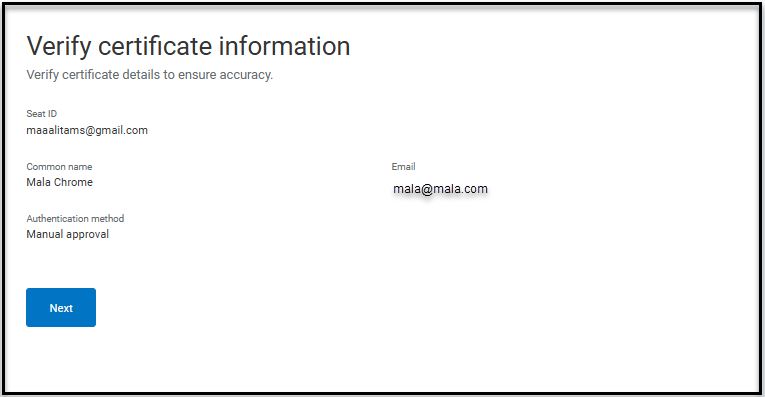
1. Copy the link in the approval e-mail and paste it into your Internet browser (Google Chrome, Mozilla Firefox or Microsoft Edge). If you click on the link directly, your default browser will open and it may be different from a compatible browser mentioned above.
2. Click Next.
3. At Install certificate, click the password to copy it (and save it locally on your computer (e.g. in the Notepad) or on a medium means where you can easily retrieve it as it cannot be retrieved) for activating the Download button.
IMPORTANT: The PASSWORD is required when importing the certificate to your browser after you downloaded it to your computer. The password in the screenshot below is an example only. You will have a different password generated for your certificate. PCT eServices is not able to provide you with the password. However, once the certificate is imported into the browser, you can use the Export/ Backup option in the Certificate Management window of the browser to save another back-up copy and create a new password of your choice. Please refer to “How to import your certificate to the browser and save a back-up copy: Google Chrome | Mozilla Firefox | Microsoft Edge”.
Click the button Download to download the certificate. It is stored by default in the Downloads folder of your computer.

Next:How to import your certificate to the browser and save a back-up copy: Google Chrome | Mozilla Firefox | Microsoft Edge