How to import your certificate to the browser and save a back-up copy for Mozilla Firefox
This user guide has been prepared using Mozilla Firefox. The screenshots and other details may differ if you use another version of the browser.
After you picked up/ retrieved and saved the WIPO Customer CA digital certificate, please follow the steps below to import it into the Mozilla Firefox browser in order to access ePCT with strong authentication.
1. Open Mozilla Firefox.
- If you use Windows, click Tools in the menu bar or click Open Application Menu icon
 at the upper right corner > go to Settings > select Privacy & Security from the left-hand menu > scroll down to Security > under Certificates, click View Certificates.
- If you use Mac OS X, select Firefox > Preferences from the Firefox Menu Bar at the top of the browser or click on the Open menu icon at the upper right corner to go to Preferences; then click Preferences and select Privacy & Security from the left-hand menu, scroll down to the bottom, the Certificates tab and finally the View Certificates button.
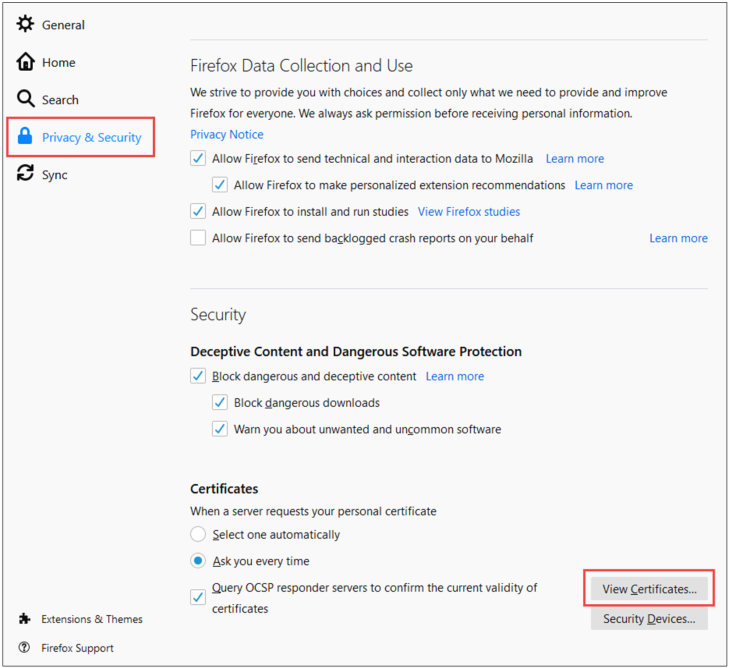
2. Click Your Certificates tab > click Import.

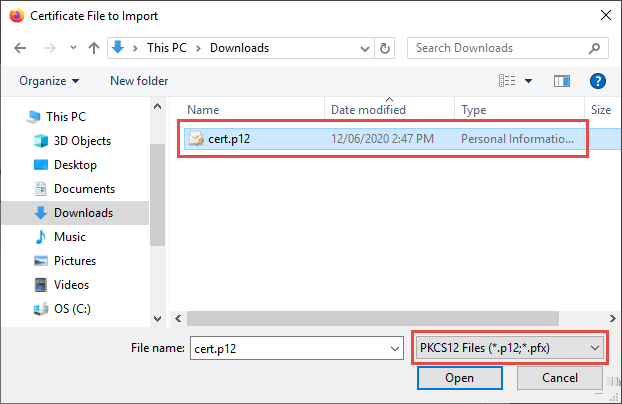
3. Browse to the location where your certificate file is stored. If you don’t remember the location of the certificate, search for files with the extension .p12 (Back-up copy made with Mozilla Firefox) or .pfx (Back-up copy made with Internet explorer).
Select the file and click Open.
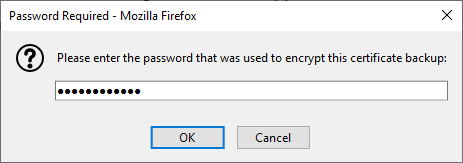
4. Enter the default password given in the Install certificate page at the time of picking up your certificate.
Then click OK.
5. Your digital certificate is now visible in the Firefox certificates list and ready for use. Click OK to finish the import.

To save a backup copy of the certificate and create a new password of your choice:
After your certificate has been imported in Mozilla Firefox, you can save a backup copy of the certificate and create a password of your choice which is different with the default one and easier for you to remember. In addition to import the certificate into your internet browser after the pick-up/ retrieval, there may be a number of reasons for importing a copy of a WIPO Customer CA digital certificate, e.g. for enabling access to ePCT after a computer or a browser change or upgrade.
6. Select the certificate in the Certificate Manager window, click Backup. Refer to the Step 1 above to find the certificate in your bowser if needed.

7. Choose a location to save the backup copy of your certificate. Provide a name for your certificate (e.g. MyWIPOCert); the file extension (.p12) will be added automatically. Type a name for the backup copy and click Save.

8. Create a password for the backup copy and click OK.
This password is required when you import the certificate in to a different browser or when re-importing the certificate after a browser upgrade.

The backup copy is now stored. You will need it in case of a computer or a browser change or upgrade to import in to the browser that you intend to use for accessing ePCT. It is also recommended to send your certificate to yourself by email in order to always keep a copy outside of your computer.
Next: How to remove your certificate from the browser: Mozilla Firefox